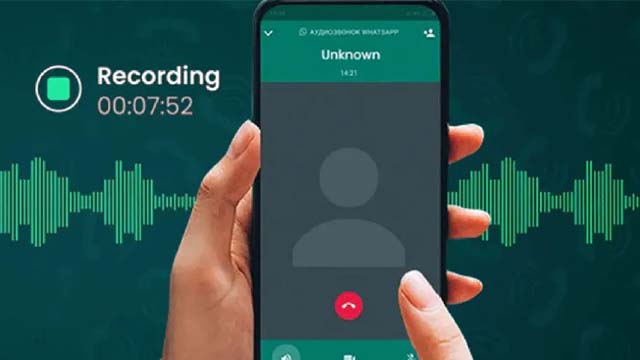
WhatsApp Features :
- WhatsApp is a widely used messaging app with features like chatting, photo sharing, video sending, and live location sharing.
- However, it does not have a built-in option to record voice calls.
Recording WhatsApp Calls :
- Simple tricks can be used to record WhatsApp audio and video calls without third-party apps.
- Only minor adjustments in WhatsApp settings are needed.
Steps to Record Calls :
Enable Screen Recording :
- Turn on the screen recording option on your device.
- Select the media microphone option before starting the recording.
Start Recording :
- Click on the start recording option to record WhatsApp calls.
- This method works for both voice and video calls, though voice quality may vary.
Using Screen Recording :
- Screen recording is an effective method to record calls for basic needs.
- Voice quality may not be perfect but will be understandable.
- Ensure not to misuse this method.
Third-Party Apps :
- As an alternative, download the "Call Recorder Cube ACR" app from the Google Play Store.
- This app links with WhatsApp to automatically record all outgoing and incoming calls.
- It also supports call recording for other apps like Facebook, Telegram, Slack, Signal, and Zoom.








Post a comment